Arduino for Beginners: Hardware, Pins and Programming
Learning Arduino from scratch means learning to connect a circuit and write the instructions that make it work. This lesson introduces the boards in the picture, explains the Arduino UNO hardware, and takes you through your first programs: LEDs, buttons, analog measurements, serial communication and timing.
Reference board: Arduino UNO R3. The 5 V wiring, pin numbers and numeric ranges in these examples refer to this board. Other models can have different characteristics. Upload each box labelled “Complete sketch” separately; do not combine all the examples into one file.
What is Arduino and what can you do with it?
Arduino is an open-source electronics platform that includes programmable boards and software tools. A board reads inputs, such as a button or sensor, runs your program, and controls outputs, such as an LED or a motor-driver circuit.
For example: “if the button is pressed, turn the LED on.” The button provides the information, the program makes the decision and an output pin controls the LED. The same idea can be used in a thermometer, a small robot or an irrigation controller.
An Arduino program is called a sketch and is normally saved in an .ino file. You write it on a computer and upload it to the board. Once powered, an UNO R3 can continue running its program without being connected to the computer.
Arduino reference: Arduino: What is Arduino? · Arduino UNO R3.
Arduino board types:
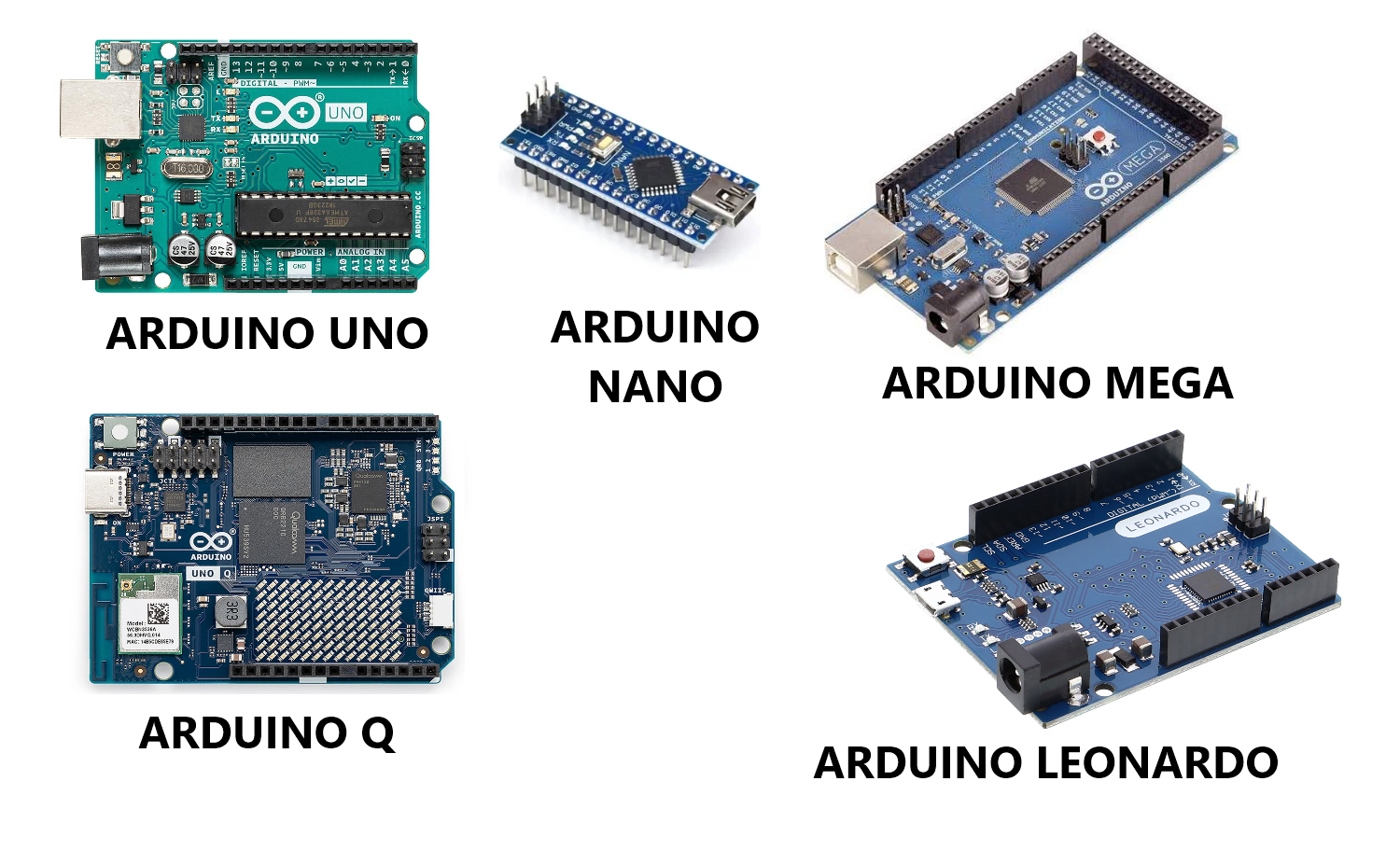 The five boards shown in the picture.
Arduino UNO R3: the reference board for this lesson
It has an ATmega328P microcontroller, accessible connectors and a USB port for programming. There are 14 digital pins, six of which support PWM, and six analog inputs. This lesson uses the UNO R3 specifically, not the other models in the UNO family.
Classic Arduino Nano: small and breadboard-friendly
It takes up less space and plugs neatly into a breadboard, the board used to build temporary circuits without soldering. It is useful when a project needs to be compact. The picture shows the classic Nano: not all members of the Nano family are electrically interchangeable.
Arduino Mega 2560: more connections
It uses the ATmega2560 and offers 54 digital pins, 16 analog inputs and four hardware serial ports. It suits projects with many buttons, sensors or connected devices. The practical difference is more than its size: there are more inputs, outputs and resources available.
Arduino UNO Q: Linux and a microcontroller on one board
It combines a Qualcomm Dragonwing QRB2210 processor running Debian Linux with an STM32U585 microcontroller for sketches and real-time control. It also supports more complex applications such as image processing and artificial intelligence. It should not be treated as an UNO R3 with extra memory: check its documentation for architecture, power and electrical compatibility.
Arduino Leonardo: built-in USB communication
Its ATmega32U4 handles USB directly. With suitable software, the board can also appear to a computer as a keyboard or mouse. We will not use those features here: the examples focus on the UNO R3 Arduino core.
Arduino reference: Arduino UNO R3 · Arduino Nano · Arduino Mega 2560 · Arduino UNO Q · Arduino Leonardo.
Arduino UNO R3 hardware: components 1 through 11
Follow the red numbers in the second image. The following sections explain references 1 through 11 in order.
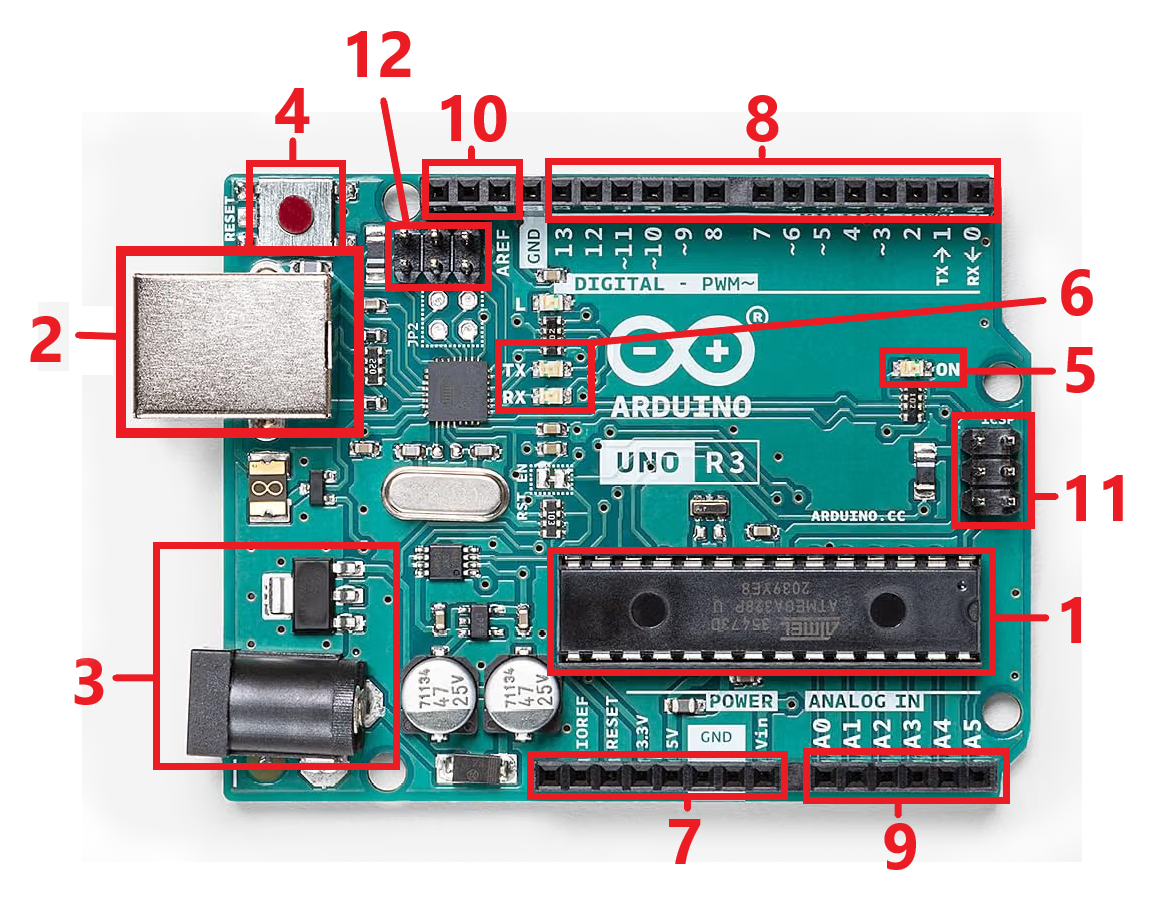 Arduino UNO R3: use the numbers in the photograph to locate each component.
1. ATmega328P microcontroller
This is the long integrated circuit in the middle of the board: it executes your program's instructions. It combines processing, memory and peripherals for reading and controlling pins. On the UNO R3 it runs at 16 MHz, with 32 KB of Flash memory for the program, partly occupied by the bootloader, and 2 KB of SRAM for temporary data.
Flash keeps the sketch even when power is removed. SRAM holds variables and working data while the program runs; after a reset, variables are initialized again. The bootloader is the small program that makes uploading sketches over USB possible.
2. USB Type-B port
This connects Arduino to your computer to power the board, upload sketches and exchange serial data. The UNO R3 uses a USB-to-serial circuit to connect the computer to its main microcontroller. Use a data-capable cable, not a charge-only cable.
3. External power jack and voltage regulation
The round connector accepts an external DC supply. The recommended range for an UNO R3 is 7–12 V, with a centre-positive connector. The regulator in the highlighted area supplies the voltage needed by the board; some of the voltage difference is dissipated as heat.
Use USB for the first exercises. Never apply 9 V to the 5V pin, 3.3V pin or signal pins. The voltage allowed at the power input is not the voltage allowed at the microcontroller inputs.
4. RESET button
This restarts the program, causing the board to run setup() again. It does not erase the sketch stored in Flash. It is useful for repeating a test from the beginning or observing startup behaviour.
5. ON LED
This indicates that the board has power. It does not confirm that the program is correct, and it is not the LED used for the blink example. Our sketches control the built-in test LED identified by LED_BUILTIN.
6. TX and RX LEDs
These indicate transmit and receive activity on the USB-to-serial interface, for example during uploads or communication with Serial Monitor. They are not general activity indicators for every pin and should not be confused with the ON LED.
7. POWER header
This groups the power and control connections. GND is the common reference; 5V and 3.3V can power small compatible circuits within the board's limits. The specified limit for the 3.3V pin is 50 mA: it is not a power source for motors or other demanding loads.
VIN connects to the regulator input and is not a 5 V output. Pulling RESET to GND restarts the board. IOREF tells accessories the board's logic level, which is 5 V on the UNO R3. The NC contact is reserved and should remain unconnected. As a beginner, do not power the board through its 5V pin: doing so bypasses parts of the intended power path.
8. Digital pins 0–13
These can be configured as inputs or outputs. For an output on the UNO R3, LOW is approximately 0 V and HIGH approximately 5 V. The pins marked ~, namely 3, 5, 6, 9, 10 and 11, support PWM.
Pins 0/RX and 1/TX are used for serial communication; leave them unconnected during these exercises. Pins 11, 12 and 13 also have SPI functions. A pin controls a signal, not an arbitrary load: Arduino's pinout specifies a maximum of 20 mA per I/O pin, and the microcontroller's combined current limits also apply.
9. Analog inputs A0–A5
These measure voltages through the analog-to-digital converter, or ADC. On the UNO R3, readings have 10-bit resolution: analogRead() returns a number from 0 to 1023. With the default reference, the measurement range runs from GND to the supply voltage, nominally 5 V.
A0–A5 can also serve as digital pins. A4 and A5 share the SDA and SCL functions respectively. They are not true analog outputs: the word “analog” does not mean they can generate any voltage you choose.
10. AREF and the additional SDA/SCL pins
The box includes AREF and the two I2C contacts added on the UNO R3. AREF relates to the ADC reference voltage; leave it unconnected in our examples. Applying an external voltage without configuring the reference correctly can cause electrical problems.
SDA is the I2C data line and SCL is the clock line. On the UNO R3 they carry the same signals as A4 and A5; they are not two additional independent channels. They connect compatible peripherals, but we will not program the I2C bus in this lesson.
11. Main microcontroller ICSP header
This six-contact header allows direct programming of the ATmega328P with an external programmer and provides SPI signals. Its connections are MISO/CIPO, MOSI/COPI, SCK, RESET, 5V and GND.
One use is restoring the bootloader. Nothing needs to be connected here for a normal USB sketch upload. Before using it, check the connector orientation in the pinout rather than guessing from its position in the photograph.
Arduino reference: Arduino UNO R3 · UNO R3: datasheet · UNO R3: pinout · UNO R3: specifiche / specifications.
Before wiring: disconnect power, avoid shorts between 5V and GND, and add a series resistor to external LEDs. Motors, relays and high-current loads need an appropriate driver circuit, not a direct connection to an I/O pin.
How to program Arduino: IDE, board selection and uploading
Arduino IDE is the application used to write, check and upload sketches. The code uses C/C++ together with functions from the Arduino core, the board's basic software support. These examples require no additional libraries and no #include lines.
- Install and connect. Install Arduino IDE from the official website and connect the UNO R3 using a USB data cable.
- Select the board and port. Choose Arduino Uno and the port associated with the board. If board support is missing, install Arduino AVR Boards through Boards Manager. This is the board package, not a project library.
- Verify and upload. Verify compiles the code and reports errors; Upload transfers the program to the board. Successful compilation does not guarantee correct wiring or program logic.
Arduino reference: Arduino IDE: upload a sketch.
void setup() and void loop(): where the program starts
void setup() {
  // Runs once at startup or after a reset.
}

void loop() {
  // Runs repeatedly after setup().
}
Complete sketch
void setup(): initialization
setup() runs once after every startup or reset. This is where you configure pins and start serial communication. The word void means the function does not return a value; it does not mean “run once.” The special name setup identifies the initialization function.
void loop(): repeated work
After setup(), Arduino calls loop() repeatedly. When the last instruction finishes, it starts again at the beginning. This is where you read buttons and sensors and update outputs. Instructions run in order: if you add a wait, the following instructions must wait too.
Parentheses contain any parameters; here they are empty. Braces enclose the function's instructions. Each sketch must contain one definition of setup() and one definition of loop().
Arduino reference: setup() · loop().
Syntax, variables and constants: reading a line of code
Most statements end with ;. Comments after // are notes for the reader and are not executed. Names are case-sensitive: use digitalRead(), not DigitalRead(), and analogWrite(), not AnalogWrite().
A variable stores a value that can change. A constant, declared with const, keeps its assigned value. Placed above setup(), these declarations are available to the sketch's functions:
const int LED_PIN = 9;
int reading = 0;
float voltage = 0.0;
bool enabled = false;
char command = '1';
unsigned long previousTime = 0;
Snippet: follow the surrounding instructions
| Type or keyword | Practical meaning |
|---|---|
const int LED_PIN = 9; | Creates a name for pin 9. Changing this value updates every instruction that uses the name. |
int | An integer. On the UNO R3 its range is −32768 to 32767, enough for a reading between 0 and 1023. |
float | A number with a fractional part. Use a decimal point in code, for example 2.5. |
bool | A logical value: true or false. |
char | One character, such as '1'. Text uses double quotes, for example "Hello". |
unsigned long | A 32-bit unsigned integer on the UNO R3. Use it for values returned by millis() and micros(). |
A variable declared inside a function is local to that block. To retain a state between calls to loop(), you can declare the variable outside the functions, as we will do for the previous time. = assigns a value; == compares two values.
Arduino reference: Arduino Language Reference · millis().
pinMode() and digitalWrite(): controlling an output
pinMode(pin, mode)
This configures a pin's role. Use OUTPUT to drive an output, INPUT to read a signal, or INPUT_PULLUP to read an input with an internal resistor pulling it toward the positive supply. An unconnected input without a pull-up or pull-down can give unstable readings.
digitalWrite(pin, HIGH or LOW)
On a pin configured as an output, this sets the output high or low. In digitalWrite(9, HIGH);, 9 selects the pin and HIGH selects the level; you are not sending the number 9 to the circuit. Configure the pin with pinMode() before using it to drive an LED.
Arduino reference: pinMode() · digitalWrite().
First Arduino example: blink the built-in LED
No external components are needed. LED_BUILTIN identifies the board's test LED, connected to pin 13 on the UNO R3.
const int LED_PIN = LED_BUILTIN;

void setup() {
  pinMode(LED_PIN, OUTPUT); // Configure the pin as an output.
}

void loop() {
  digitalWrite(LED_PIN, HIGH); // Turn the built-in LED on.
  delay(500);                 // Wait half a second.
  digitalWrite(LED_PIN, LOW);  // Turn the LED off.
  delay(500);                 // Wait half a second.
}
Complete sketch
const int LED_PIN = LED_BUILTIN; gives the connection a name. In setup(), pinMode(LED_PIN, OUTPUT); prepares the output. Inside loop(), the first digitalWrite() turns the LED on; delay(500) waits 500 milliseconds; the next write turns the LED off; the final wait keeps it off before the cycle repeats.
Two 500 ms waits produce a cycle of approximately one second. Change both to 100 for a faster blink. digitalWrite() does not choose the timing; your wait instructions do.
Arduino reference: digitalWrite() · delay().
digitalRead() and INPUT_PULLUP: reading a button
digitalRead(pin) returns HIGH or LOW. The statement int buttonState = digitalRead(2); reads pin 2 and stores the result so you can use it to make a decision.
Wiring: connect a normally open pushbutton between D2 and GND. With INPUT_PULLUP, an unpressed button reads HIGH; pressing it connects the pin to ground, so it reads LOW. For a four-legged pushbutton, use two contacts that connect only when pressed, not two already joined inside the switch.
const int BUTTON_PIN = 2;
const int LED_PIN = LED_BUILTIN;

void setup() {
  pinMode(BUTTON_PIN, INPUT_PULLUP);
  pinMode(LED_PIN, OUTPUT);
}

void loop() {
  int buttonState = digitalRead(BUTTON_PIN);

  if (buttonState == LOW) {
    digitalWrite(LED_PIN, HIGH);
  } else {
    digitalWrite(LED_PIN, LOW);
  }
}
Complete sketch
if (buttonState == LOW) means “if the button is pressed.” The else block runs otherwise. The LED follows the button here; it does not remember the press. Mechanical buttons can bounce, so counting presses or toggling an ON/OFF state also requires debouncing.
Arduino reference: digitalRead() · pinMode().
if, else and operators: making decisions
if tests a condition; else if checks an alternative; else handles the remaining cases. In one chain, only the first block with a true condition runs. Put this snippet in loop(), after starting serial communication with Serial.begin(9600) in setup():
int reading = analogRead(A0);

if (reading < 300) {
  Serial.println("LOW");
} else if (reading < 700) {
  Serial.println("MEDIUM");
} else {
  Serial.println("HIGH");
}
Snippet: follow the surrounding instructions
| Operator | Use |
|---|---|
== / != | Equal / not equal. |
<, >, <=, >= | Less than, greater than, less than or equal, greater than or equal. |
&& / || | AND: both conditions must be true. OR: at least one must be true. |
! | Negates a condition: !pressed means “not pressed.” |
+, -, *, /, % | Arithmetic operations; % gives the remainder of integer division. |
Be careful with integer division: 5 / 2 gives 2, while 5.0 / 2.0 gives 2.5. Another common mistake is if (value = 10): it assigns 10 instead of checking whether the value equals 10.
Arduino reference: Arduino Language Reference.
Serial.begin(), print() and println(): talking to the computer
Serial.begin(9600);, inside setup(), configures serial communication. Open the IDE's Serial Monitor and select the same rate, 9600 baud, for these UNO R3 examples.
Serial.print("Value: "); sends text without starting a new line. Serial.println(reading); sends the value and ends the line. Serial.println(voltage, 2); displays a floating-point value with two decimal places. Writing only print() is not equivalent: Serial identifies where the data should go.
Serial.write() sends bytes without converting them into their readable numeric representation: Serial.print(65) sends the text “65”, while Serial.write(65) sends the ASCII character “A”. For inspecting values in your first experiments, mainly use print() and println().
Arduino reference: Serial.begin() · Serial.print().
Serial.available() and Serial.read(): receiving a command
Serial.available() reports how many bytes have arrived; Serial.read() removes and returns one. Without data, read() returns −1, which is why we check available() first. Upload the sketch and send 1 or 0 from Serial Monitor:
const int LED_PIN = LED_BUILTIN;

void setup() {
  pinMode(LED_PIN, OUTPUT);
  Serial.begin(9600);
  Serial.println("Send 1 for ON, 0 for OFF");
}

void loop() {
  if (Serial.available() > 0) {
    char command = Serial.read();

    if (command == '1') {
      digitalWrite(LED_PIN, HIGH);
      Serial.println("LED ON");
    } else if (command == '0') {
      digitalWrite(LED_PIN, LOW);
      Serial.println("LED OFF");
    }
  }
}
Complete sketch
'1' is the typed character, not the integer 1. Any line-ending characters are ignored because they do not match either command. read() does not automatically read a whole sentence.
Arduino reference: Serial.available() · Serial.read().
analogRead(): reading a potentiometer
Connect a 10 kΩ potentiometer: its two outer terminals go to 5V and GND, and its centre terminal, called the wiper, goes to A0. Turning it changes the wiper voltage. On the UNO R3, analogRead(A0) represents that voltage with a number between 0 and 1023, not directly in volts.
const int POT_PIN = A0;
const float VREF = 5.0; // Nominal value, not a measured supply voltage.

void setup() {
  Serial.begin(9600);
}

void loop() {
  int reading = analogRead(POT_PIN);
  float voltage = reading * (VREF / 1023.0);

  Serial.print("ADC: ");
  Serial.print(reading);
  Serial.print(" | V: ");
  Serial.println(voltage, 2);
  delay(200);
}
Complete sketch
float voltage = reading * (VREF / 1023.0); approximately scales the endpoints 0–1023 to 0–VREF. A reading around 512 corresponds to about 2.5 V when the reference really is 5 V. Using .0 keeps the calculation in floating-point arithmetic.
This is not a precision measurement: the nominal 5.0 may differ from the actual voltage. The ADC has 1024 levels, with an ideal step of approximately VREF/1024. Stay within the input's electrical limits and do not apply negative voltages or voltages above the supply.
Arduino reference: analogRead().
analogWrite(): adjusting LED brightness with PWM
On the UNO R3, analogWrite(pin, value) uses PWM pins 3, 5, 6, 9, 10 and 11. The value ranges from 0 to 255: 0 holds the output low and 255 holds it high. Intermediate values change the fraction of time spent high, called the duty cycle.
analogWrite(9, 128); makes the signal high for approximately half the time. It does not generate a precise, steady 2.5 V output: it switches between low and high levels. An LED looks dimmer because it receives energy during only part of each cycle.
map() and constrain(): changing scales
map(reading, 0, 1023, 0, 255) converts the input scale to the PWM scale. Its five arguments are the value, the two original endpoints and the two new endpoints. It uses integer arithmetic, so fractional results are not preserved.
constrain(value, 0, 255) limits a result to that range. map() does not clamp values automatically: an input outside the original scale can produce an output outside the new scale. Our ADC reading is already in range; the explicit clamp demonstrates how to protect the output if you later change the calculation.
Wiring: keep the potentiometer on A0 and add D9 → 220 Ω resistor → LED anode; LED cathode → GND. The resistor is essential. Use an external LED, not the built-in LED on pin 13.
const int POT_PIN = A0;
const int LED_PIN = 9;

void setup() {
  pinMode(LED_PIN, OUTPUT);
}

void loop() {
  int reading = analogRead(POT_PIN);
  int brightness = map(reading, 0, 1023, 0, 255);
  brightness = constrain(brightness, 0, 255);
  analogWrite(LED_PIN, brightness);
  delay(10);
}
Complete sketch
Arduino reference: analogWrite() · map() · constrain().
delay(), millis() and micros(): managing time
delay(1000) stops the sketch from advancing for one second. It is convenient for early experiments, but during that wait the loop() code does not read new button states. The board is not turned off: some hardware functions and interrupts still operate.
delayMicroseconds(10) waits in microseconds instead. millis() and micros() do not wait: they return elapsed time in milliseconds and microseconds respectively. Use them to check whether an interval has passed without stopping the rest of the program.
Blinking without delay()
const int LED_PIN = LED_BUILTIN;
const unsigned long INTERVAL_MS = 500;
unsigned long previousTime = 0;
bool ledState = false;

void setup() {
  pinMode(LED_PIN, OUTPUT);
}

void loop() {
  unsigned long now = millis();

  if (now - previousTime >= INTERVAL_MS) {
    previousTime = now;
    ledState = !ledState;
    digitalWrite(LED_PIN, ledState ? HIGH : LOW);
  }

  // Read buttons or sensors here without waiting for 500 ms.
}
Complete sketch
previousTime stores the time of the previous change. now - previousTime calculates elapsed time; after 500 ms, you update the reference and invert the state with !ledState. The expression ledState ? HIGH : LOW selects HIGH when the state is true and LOW otherwise.
Use unsigned long and subtraction, rather than comparing with previousTime + interval. On the UNO R3, millis() wraps to zero after approximately 49.7 days. Unsigned subtraction handles that transition provided you check regularly without missing a whole counter cycle. micros() also wraps, about every 71.6 minutes, and has a 4 µs resolution on the UNO R3.
Arduino reference: delay() · millis() · micros().
for, while and functions: organizing a program
for: repeating an operation a defined number of times
In for (int level = 0; level <= 255; level += 5), the first part initializes the counter, the second tests whether to continue, and the third updates the counter after each iteration. Use the same external LED on D9 to create a fade:
const int LED_PIN = 9;

void setup() {
  pinMode(LED_PIN, OUTPUT);
}

void loop() {
  for (int level = 0; level <= 255; level += 5) {
    analogWrite(LED_PIN, level);
    delay(20);
  }

  for (int level = 255; level >= 0; level -= 5) {
    analogWrite(LED_PIN, level);
    delay(20);
  }
}
Complete sketch
The second loop decreases the value. We use int so the counter can fall below zero and end the loop; an unsigned counter would need extra care. These loops contain delay(), so the fade is deliberately blocking.
while: repeating while a condition stays true
Placed in loop() with serial communication already initialized, this snippet sends the available characters back to the computer:
while (Serial.available() > 0) {
  int received = Serial.read();
  Serial.write(received);
}
Snippet: follow the surrounding instructions
Each read consumes one byte, but a continuous stream could keep the program inside the loop. break exits a loop; continue skips to its next iteration. switch can replace several if alternatives testing the same value; its case blocks normally end with break.
Writing a function and returning a result
A function groups reusable instructions. This is not a library: it is a function written in the same sketch. Keep the potentiometer connected to A0:
float readVoltage(int pin) {
  int reading = analogRead(pin);
  return reading * (5.0 / 1023.0);
}

void setup() {
  Serial.begin(9600);
}

void loop() {
  float voltage = readVoltage(A0);
  Serial.println(voltage, 2);
  delay(200);
}
Complete sketch
float before readVoltage specifies the return type; int pin is the received parameter; return ends the function and passes its result back to the caller. Use void for a function that performs an action without returning a value. return; can also end a void function early.
Arduino reference: Arduino Language Reference · analogRead().
Other useful native Arduino functions
tone() and noTone(): generating sound
For this exercise use a small passive piezo transducer suitable for low-current drive: D8 → 100 Ω resistor → piezo → GND. Do not connect an 8 Ω speaker or a high-current buzzer directly to the pin.
const int PIEZO_PIN = 8;

void setup() {
  pinMode(PIEZO_PIN, OUTPUT);
}

void loop() {
  tone(PIEZO_PIN, 1000); // Generate a 1000 Hz tone.
  delay(200);
  noTone(PIEZO_PIN);
  delay(800);
}
Complete sketch
tone(8, 1000) generates a 1000 Hz signal; noTone(8) stops it. You can also write tone(8, 1000, 200) for a 200 ms duration: the function starts the tone without waiting for it to finish. In the UNO R3 AVR core, tone() uses a timer that interferes with PWM on pins 3 and 11.
Arduino reference: tone().
pulseIn(): measuring pulse duration
The following snippet requires D2 configured as INPUT, a pulse source with compatible 0–5 V levels and common ground, and serial communication already started. Do not leave the input unconnected:
unsigned long duration = pulseIn(2, HIGH, 30000UL);

if (duration == 0) {
  Serial.println("Timeout");
} else {
  Serial.println(duration);
}
Snippet: follow the surrounding instructions
pulseIn(2, HIGH, 30000UL) measures a high pulse and returns its duration in microseconds. The timeout is 30000 µs, or 30 ms; the UL suffix specifies an unsigned long literal. A result of 0 means no complete pulse was measured within the available time; it is not a valid reading to use without checking. The function can block sketch execution while waiting.
Arduino reference: pulseIn().
Math, random numbers and Flash-stored text
| Instruction | Purpose |
|---|---|
min(a, b) / max(a, b) | Select the smaller or larger value. |
abs(value) | Returns the absolute value of a number. |
random(1, 7) | Generates a pseudorandom integer from 1 through 6; the upper bound is excluded. |
randomSeed(seed) | Initializes the pseudorandom sequence. The same seed gives the same sequence; it is not suitable for security purposes. |
Serial.println(F("Ready")); | On the UNO R3, keeps this constant text in Flash to reduce SRAM usage. No external library is needed. |
Avoid arguments with side effects, such as value++, in minimum, maximum or clamping helpers. Calculate the value first, then pass it to the helper.
Arduino reference: random() · constrain() · Serial.print() · Arduino Language Reference.
Next step: attachInterrupt() and detachInterrupt()
An interrupt calls a small function when an event occurs without waiting for the normal loop() cycle. External interrupts are available on UNO R3 pins 2 and 3. The recommended form is attachInterrupt(digitalPinToInterrupt(pin), function, FALLING); detachInterrupt(digitalPinToInterrupt(pin)) removes that association.
Keep the called function very short: avoid delay() and serial printing inside it. Variables shared with the main program require volatile; on AVR, data larger than one byte also requires protected access because volatile does not make an operation atomic. For your first buttons, digitalRead() is normally enough.
Arduino reference: attachInterrupt().
Final project: a button, adjustable brightness and Serial Monitor
Combine what you have learned. Hold the button to enable the LED, then turn the potentiometer to adjust brightness. Serial Monitor reports the readings every half second, without delay().
Connect the 10 kΩ potentiometer between 5V and GND, with its wiper on A0; the button between D2 and GND; and the LED to D9 through a 220 Ω series resistor, with its cathode to GND. This wiring is for the UNO R3. Open Serial Monitor at 9600 baud.
const int POT_PIN = A0;
const int BUTTON_PIN = 2;
const int LED_PIN = 9;
const unsigned long REPORT_INTERVAL_MS = 500;
unsigned long previousReport = 0;

void setup() {
  pinMode(BUTTON_PIN, INPUT_PULLUP);
  pinMode(LED_PIN, OUTPUT);
  Serial.begin(9600);
}

void loop() {
  int reading = analogRead(POT_PIN);
  bool pressed = digitalRead(BUTTON_PIN) == LOW;
  int brightness = map(reading, 0, 1023, 0, 255);
  brightness = constrain(brightness, 0, 255);

  if (!pressed) {
    brightness = 0;
  }
  analogWrite(LED_PIN, brightness);

  unsigned long now = millis();
  if (now - previousReport >= REPORT_INTERVAL_MS) {
    previousReport = now;
    Serial.print("ADC: ");
    Serial.print(reading);
    Serial.print(" | Button: ");
    Serial.print(pressed);
    Serial.print(" | PWM: ");
    Serial.println(brightness);
  }
}
Complete sketch
bool pressed = digitalRead(BUTTON_PIN) == LOW; combines reading and comparison. if (!pressed) forces brightness to zero when the button is released. LED control happens on each pass through the loop, while the millis() block limits only how often values are printed. Input, decision and output now work together in one program.
Common mistakes when starting with Arduino
Compilation error: read the first error message, then check semicolons, braces, capitalization and variable names. Make sure two setup() or loop() definitions have not been copied into one sketch.
Upload failed: check the selected board and port, the data cable and anything connected to pins 0 and 1. Check that another application is not occupying the serial port.
LED stays off: check its anode, cathode, resistor, declared pin number and pinMode(). For adjustable brightness, use a supported PWM pin such as D9.
Inverted button behaviour or unstable readings: with INPUT_PULLUP, a press reads LOW. A floating input can give unpredictable results, and mechanical buttons can bounce.
Unresponsive program: look for delay(), long loops or pulse waits. Excessive serial printing can slow a sketch down too; update the monitor at a reasonable interval.
Arduino reference: Arduino IDE: upload a sketch · digitalRead() · delay() · Serial.print().
Three exercises to check your understanding
1. Change Blink so the LED stays on for 100 ms and off for 900 ms. 2. Reverse the LED response in the button example without changing the wiring. 3. In the final project, change the map() output range from 0–255 to 0–120 to reduce maximum brightness.
When you can explain why each change works, you understand the basics of reading an input, making a decision and controlling an output. You do not need to memorize everything: start with setup(), loop(), pinMode(), digitalRead(), digitalWrite(), analogRead(), analogWrite(), Serial and millis().
Documentation and references
The comparison and hardware images are the ones supplied for this lesson. References 1–11 follow the second image; board characteristics and function behaviour are expanded using the official Arduino documentation linked throughout the lesson. The examples are teaching exercises for the UNO R3, not compatibility tests for every Arduino board.
Arduino reference: Arduino Language Reference · Arduino UNO R3 · UNO R3: pinout · Arduino IDE: upload a sketch.