How to Use 3x4 and 4x4 Keypads with Arduino: Wiring and Code
3x4 and 4x4 membrane keypads are compact input devices commonly used in Arduino projects. They make it possible to enter numbers, codes, commands and menu choices without using many separate push buttons. This lesson explains how they work internally, how to identify rows and columns, how to wire them to an Arduino UNO and how to read them with the Keypad library.
3x4 and 4x4 keypads: what is the difference?
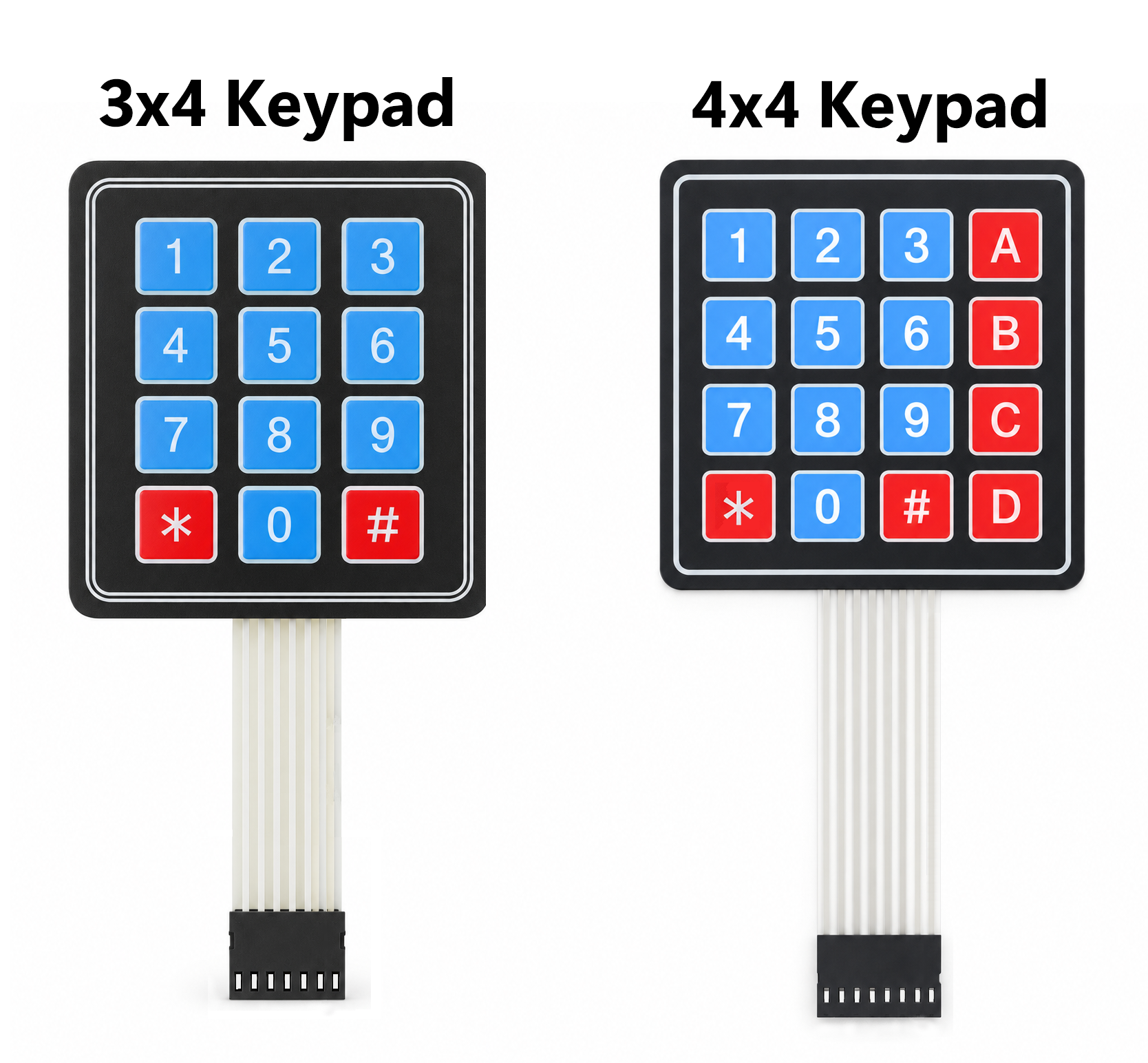
A 3x4 keypad has 12 keys: digits 0 to 9, * and #. It is arranged as 4 rows and 3 columns, so it uses 7 connections.
A 4x4 keypad has 16 keys. In addition to the numbers, * and #, it normally includes A, B, C and D. It uses 4 rows and 4 columns, requiring 8 connections.
The A-D keys can select operating modes, open menus, confirm actions or provide extra commands.
How a membrane keypad works
A membrane keypad is made from thin flexible layers containing conductive tracks. A spacer keeps the contacts separated while no key is pressed. Pressing a key pushes the layers together and electrically connects one row to one column.
The 5 key, for example, does not directly send the character “5”. It closes the intersection of its row and column. Arduino identifies that row-column combination and converts it into the character defined in the key map.
These keypads are passive components. They do not have a normal VCC pin or GND pin. Every connector contact belongs to a row or column, so no keypad wire should be connected directly to 5 V or GND.
How Arduino scans the matrix
Arduino reads the keyboard using a process called matrix scanning:
- configure the row pins as inputs with pull-up resistors;
- drive one column at a time LOW;
- read every row;
- if one row becomes LOW, the key at that row-column intersection is pressed;
- repeat the process quickly for every column.
The Keypad library performs this scan automatically and also handles normal contact debouncing. External resistors are not normally needed when the keypad is read through the library.
3x4 and 4x4 keypad pinout
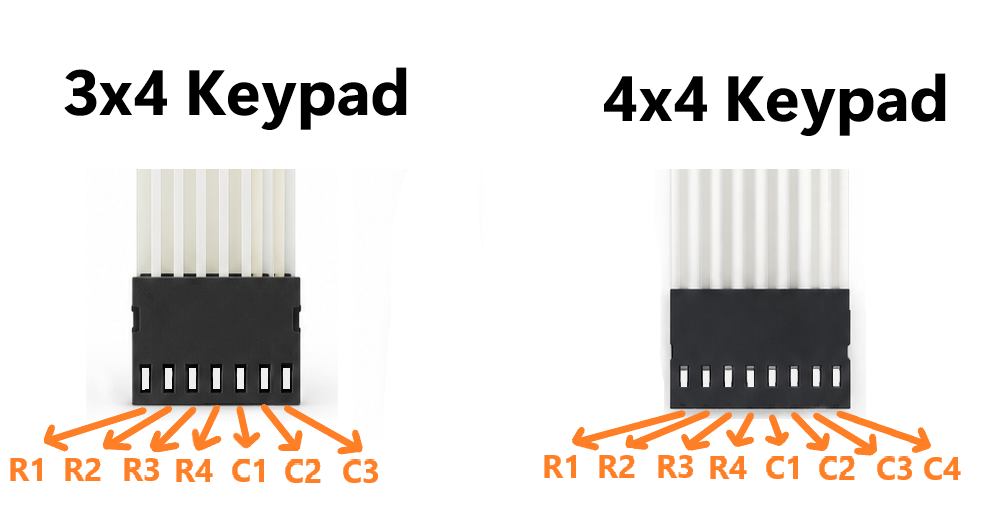
With the connector oriented exactly as shown in the image, the contacts run from left to right in this order:
- 3x4 keypad: R1, R2, R3, R4, C1, C2, C3.
- 4x4 keypad: R1, R2, R3, R4, C1, C2, C3, C4.
Some keypads from other manufacturers may use a different order or may have the connector mounted in the opposite direction. If the detected keys are mixed up, check the orientation or identify the row-column contacts with a multimeter continuity test.
How to wire a 3x4 keypad to Arduino UNO
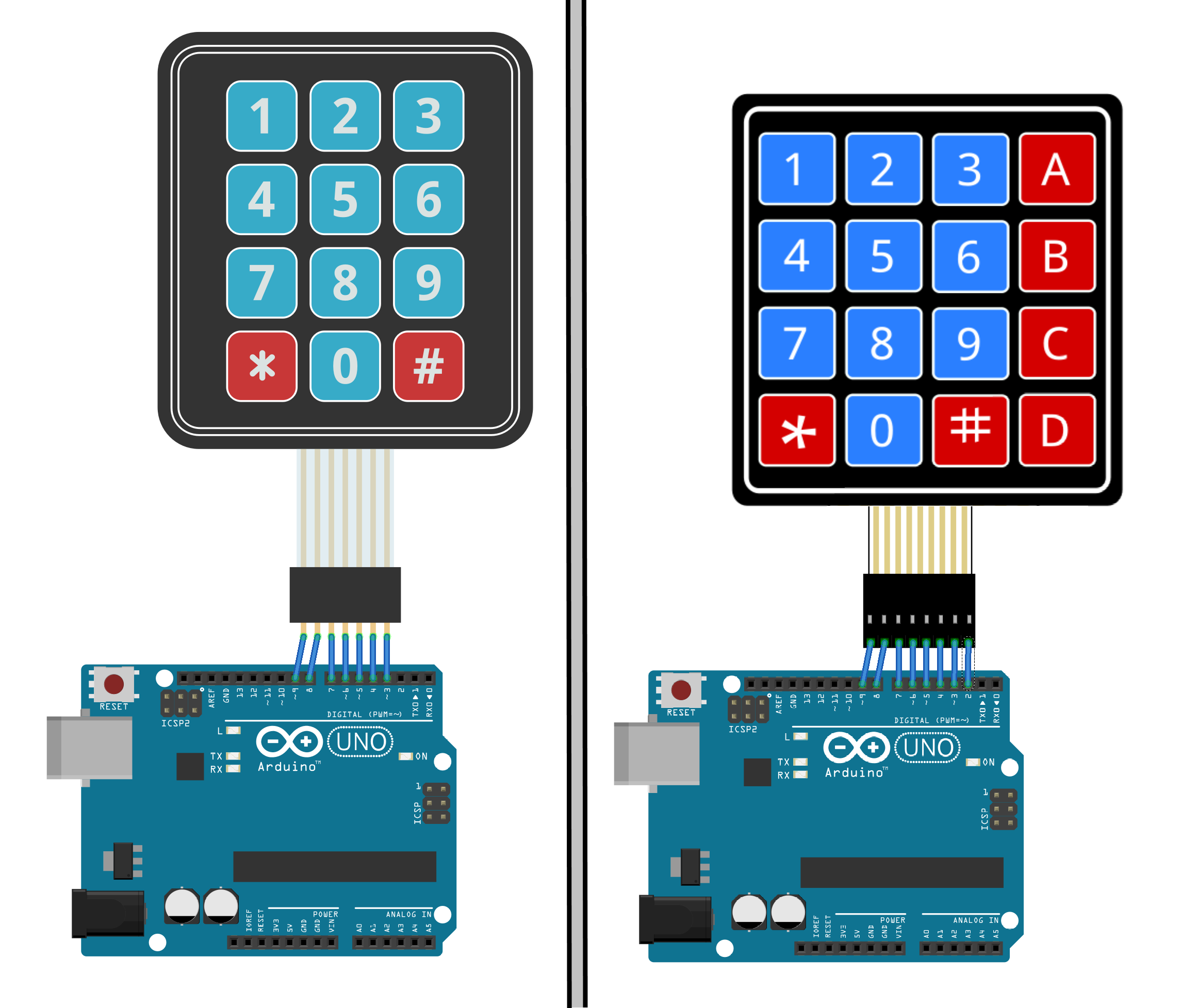
- R1 → pin 9
- R2 → pin 8
- R3 → pin 7
- R4 → pin 6
- C1 → pin 5
- C2 → pin 4
- C3 → pin 3
Pins 0 and 1 remain available for serial communication. You can choose other digital pins, but the rowPins and colPins arrays in the sketch must match the real wiring.
How to wire a 4x4 keypad to Arduino UNO
- R1 → pin 9
- R2 → pin 8
- R3 → pin 7
- R4 → pin 6
- C1 → pin 5
- C2 → pin 4
- C3 → pin 3
- C4 → pin 2
Again, there are no VCC or GND connections: all eight wires go to Arduino digital pins.
Install the Arduino Keypad library
Open the Arduino IDE Library Manager, search for Keypad and install the matrix keypad library by Mark Stanley and Alexander Brevig. Then add:
#include <Keypad.h> // Imports the library used to handle the matrix keypad.The library lets you define the number of rows, the number of columns, the selected Arduino pins and the character assigned to every matrix position.
Arduino code for a 3x4 keypad
// https://nemiatools.com
#include <Keypad.h> // Imports the library used to handle the matrix keypad.

const byte ROWS = 4; // Sets the number of keypad rows to four.
const byte COLS = 3; // Sets the number of keypad columns.

char keys[ROWS][COLS] = { // Starts the character map matching the physical keys.
  {'1', '2', '3'}, // Maps the characters on the first keypad row.
  {'4', '5', '6'}, // Maps the characters on the second keypad row.
  {'7', '8', '9'}, // Maps the characters on the third keypad row.
  {'*', '0', '#'} // Maps the characters on the fourth keypad row.
}; // Ends the key character matrix declaration.

// R1, R2, R3, R4
byte rowPins[ROWS] = {9, 8, 7, 6}; // Maps rows R1-R4 to digital pins 9, 8, 7 and 6.

// C1, C2, C3
byte colPins[COLS] = {5, 4, 3}; // Maps each column to its corresponding Arduino pin.

Keypad keypad = Keypad( // Starts creating the object that manages the keypad.
  makeKeymap(keys), // Passes the key character map to the library.
  rowPins, // Provides the Arduino pins connected to the rows.
  colPins, // Provides the Arduino pins connected to the columns.
  ROWS, // Passes the number of rows to the object.
  COLS // Passes the number of columns to the object.
); // Completes construction of the keypad object.

void setup() {
  Serial.begin(9600); // Starts serial communication at 9600 baud.
  Serial.println("3x4 keypad ready"); // Prints the startup message in the Serial Monitor.
}

void loop() {
  char key = keypad.getKey(); // Reads a newly pressed key, if one is available.

  if (key != NO_KEY) { // Checks whether a valid key press was detected.
    Serial.print("Key pressed: "); // Prints the label before the detected character.
    Serial.println(key); // Prints the pressed character followed by a newline.
  } // Ends the check for a detected key.
}
Open the Serial Monitor at 9600 baud. Each key press will print its corresponding character. getKey() is non-blocking: when no new key has been pressed, it returns NO_KEY and the rest of the loop continues.
How the keypad code is structured
The ROWS and COLS constants define the matrix size. A 3x4 keypad therefore uses 4 rows and 3 columns.
The two-dimensional keys array describes the physical character layout. The first row contains 1, 2 and 3, the second row contains 4, 5 and 6, and so on. If the wrong characters are reported, the map or pin order may not match the real keypad.
The rowPins and colPins arrays define which Arduino pins connect to R1-R4 and the columns. makeKeymap(keys) converts the character matrix into the format expected by the library.
Finally, the Keypad keypad object combines the map, pins and dimensions. Calling keypad.getKey() then scans the matrix and returns the detected character.
Arduino code for a 4x4 keypad
// https://nemiatools.com
#include <Keypad.h> // Imports the library used to handle the matrix keypad.

const byte ROWS = 4; // Sets the number of keypad rows to four.
const byte COLS = 4; // Sets the number of keypad columns.

char keys[ROWS][COLS] = { // Starts the character map matching the physical keys.
  {'1', '2', '3', 'A'}, // Maps the characters on the first keypad row.
  {'4', '5', '6', 'B'}, // Maps the characters on the second keypad row.
  {'7', '8', '9', 'C'}, // Maps the characters on the third keypad row.
  {'*', '0', '#', 'D'} // Maps the characters on the fourth keypad row.
}; // Ends the key character matrix declaration.

// R1, R2, R3, R4
byte rowPins[ROWS] = {9, 8, 7, 6}; // Maps rows R1-R4 to digital pins 9, 8, 7 and 6.

// C1, C2, C3, C4
byte colPins[COLS] = {5, 4, 3, 2}; // Maps each column to its corresponding Arduino pin.

Keypad keypad = Keypad( // Starts creating the object that manages the keypad.
  makeKeymap(keys), // Passes the key character map to the library.
  rowPins, // Provides the Arduino pins connected to the rows.
  colPins, // Provides the Arduino pins connected to the columns.
  ROWS, // Passes the number of rows to the object.
  COLS // Passes the number of columns to the object.
); // Completes construction of the keypad object.

void setup() {
  Serial.begin(9600); // Starts serial communication at 9600 baud.
  Serial.println("4x4 keypad ready"); // Prints the startup message in the Serial Monitor.
}

void loop() {
  char key = keypad.getKey(); // Reads a newly pressed key, if one is available.

  if (key != NO_KEY) { // Checks whether a valid key press was detected.
    Serial.print("Key pressed: "); // Prints the label before the detected character.
    Serial.println(key); // Prints the pressed character followed by a newline.
  } // Ends the check for a detected key.
}
Compared with the 3x4 version, this sketch adds a fourth column, the C4 pin and the A-D characters. Everything else works in the same way.
Most useful Keypad library functions
- getKey() → returns a newly pressed key without blocking the program.
- waitForKey() → waits until a key is pressed and blocks the program during that time.
- setDebounceTime(ms) → changes the debounce interval in milliseconds.
- setHoldTime(ms) → sets how many milliseconds are required before a key enters the HOLD state.
- addEventListener() → connects a function to keypad events such as press, hold and release.
- getKeys() → updates the active-key list and is useful when a program needs to track multiple keys.
Practical example: enter a PIN code
This example uses the 4x4 keypad. Number keys are stored, * clears the current input and # confirms it. When the code is correct, the Arduino built-in LED turns on for one second. The same logic can be used with a 3x4 keypad by changing only the initial map and wiring arrays.
// https://nemiatools.com
#include <Keypad.h> // Imports the library used to handle the matrix keypad.
#include <string.h> // Imports C string functions, including strcmp() for comparison.

const byte ROWS = 4; // Defines the four keypad rows.
const byte COLS = 4; // Defines the four keypad columns.

char keys[ROWS][COLS] = { // Starts the 4x4 keypad character map.
  {'1', '2', '3', 'A'}, // Maps the first row keys: 1, 2, 3 and A.
  {'4', '5', '6', 'B'}, // Maps the second row keys: 4, 5, 6 and B.
  {'7', '8', '9', 'C'}, // Maps the third row keys: 7, 8, 9 and C.
  {'*', '0', '#', 'D'} // Maps the fourth row keys: *, 0, # and D.
}; // Ends the two-dimensional character map.

byte rowPins[ROWS] = {9, 8, 7, 6}; // Maps rows R1-R4 to digital pins 9, 8, 7 and 6.
byte colPins[COLS] = {5, 4, 3, 2}; // Maps columns C1-C4 to digital pins 5, 4, 3 and 2.

Keypad keypad = Keypad( // Starts constructing the keypad object.
  makeKeymap(keys), // Supplies the character layout to the library.
  rowPins, // Passes the row pin list.
  colPins, // Passes the column pin list.
  ROWS, // Specifies the number of matrix rows.
  COLS // Specifies the number of matrix columns.
); // Finishes creating the Keypad object.

const char correctCode[] = "2580"; // Defines the correct PIN, hard-coded here as 2580.
char enteredCode[9]; // Reserves nine characters: up to eight digits plus the terminator.
byte enteredLength = 0; // Initializes the number of entered digits to zero.

void clearCode() {
  enteredLength = 0; // Resets the number of stored digits.
  enteredCode[0] = '\0'; // Inserts the terminator to make the string empty.
} // Ends the function that clears the entered code.

void setup() {
  Serial.begin(9600); // Starts the serial port at 9600 baud.
  pinMode(LED_BUILTIN, OUTPUT); // Configures Arduino’s built-in LED as an output.

  keypad.setDebounceTime(25); // Sets key debouncing to 25 milliseconds.

  Serial.println("Enter the code"); // Prompts the user to enter the code.
  Serial.println("* = clear, # = confirm"); // Explains that * clears and # confirms the code.
}

void loop() {
  char key = keypad.getKey(); // Reads the key pressed in the current iteration.

  if (key == NO_KEY) { // Checks whether no new key press was detected.
    return; // Ends this loop iteration immediately when no key is pressed.
  } // Ends the no-key check.

  if (key == '*') { // Checks whether the * clear key was pressed.
    clearCode(); // Clears all previously entered digits.
    Serial.println("\nCode cleared"); // Reports that the entered code has been cleared.
  } // Ends handling of the clear key.
  else if (key == '#') { // Otherwise, checks whether # confirms the code.
    enteredCode[enteredLength] = '\0'; // Null-terminates the entered code string.

    if (strcmp(enteredCode, correctCode) == 0) { // Compares the entered code with the expected PIN.
      Serial.println("\nCorrect code"); // Reports that the PIN is correct.

      digitalWrite(LED_BUILTIN, HIGH); // Turns on the built-in LED to signal success.
      delay(1000); // Keeps the LED on for 1000 milliseconds.
      digitalWrite(LED_BUILTIN, LOW); // Turns off the LED after the indication.
    } // Ends the branch executed for a correct PIN.
    else { // Handles the case where the PIN does not match.
      Serial.println("\nWrong code"); // Prints the incorrect PIN message.
    } // Ends the incorrect PIN branch.

    clearCode(); // Clears the entry after every confirmation.
  } // Ends handling of the # key.
  else if (key >= '0' && key <= '9') { // Accepts only numeric characters from 0 to 9.
    if (enteredLength < sizeof(enteredCode) - 1) { // Checks that room remains for the string terminator.
      enteredCode[enteredLength] = key; // Stores the digit at the current position.
      enteredLength++; // Increments the number of entered digits.
      enteredCode[enteredLength] = '\0'; // Keeps the string null-terminated after the last digit.

      Serial.print('*'); // Prints an asterisk instead of the entered digit.
    } // Ends the available-buffer-space check.
  } // Ends handling of a numeric digit.
}
Debouncing, long presses and multiple keys
A mechanical contact can change state several times during the first few milliseconds of a press. The library filters this behavior automatically, and setDebounceTime() can adjust the filter. A value that is too low may create double presses, while an excessive value can make the keyboard feel slow.
setHoldTime() controls when a press becomes a HOLD event. This is useful when a short press and a long press should perform different actions.
The library can track multiple keys, but common membrane keypads do not include a diode for each switch. Pressing several keys at the same time can therefore create false combinations known as ghosting. For passwords and menus, pressing one key at a time is the most reliable method.
Arduino keypad applications
- password-controlled electronic locks;
- LCD or OLED menus;
- calculators and numeric input panels;
- mode and settings selection;
- robot and small-machine controls;
- entering quantities, times and configuration values.
Common problems
Arduino detects no keys
Check every wire and make sure the row and column order matches the arrays in the sketch. Also verify that the Keypad library is installed correctly.
The printed keys do not match the keys being pressed
The connector may be reversed or your model may use a different pinout. Change the order of rowPins and colPins, or identify the contacts with a multimeter.
One key is detected twice
Increase the debounce interval slightly, for example with keypad.setDebounceTime(25);. Also check that the connector is firmly inserted.
The 4x4 keypad reads numbers but not A-D
Check the fourth column C4 and make sure COLS is set to 4.