How to Build a Password Door Lock with Arduino
Description
This project is an Arduino password door lock built with a 4x4 matrix keypad and an SRD-05VDC-SL-C 5V relay module. The user enters a numeric password, clears it with the star key, and confirms it with the hash key. When the correct password is confirmed, the Arduino toggles the relay module output. The relay module used in this project has an active-LOW signal input, so the relay turns on when the Arduino sends LOW and turns off when the Arduino sends HIGH. This project is useful for learning keypad scanning, access-control logic, relay modules, active-LOW outputs, and password-based Arduino projects.
Required components:
- 1x Arduino UNO
- 1x 4x4 keypad module
- 1x SRD-05VDC-SL-C 5V relay module with active-LOW signal input
- Jumper cables (and optional breadboard)
- External power supply for the lock or load, if required
Schematic:
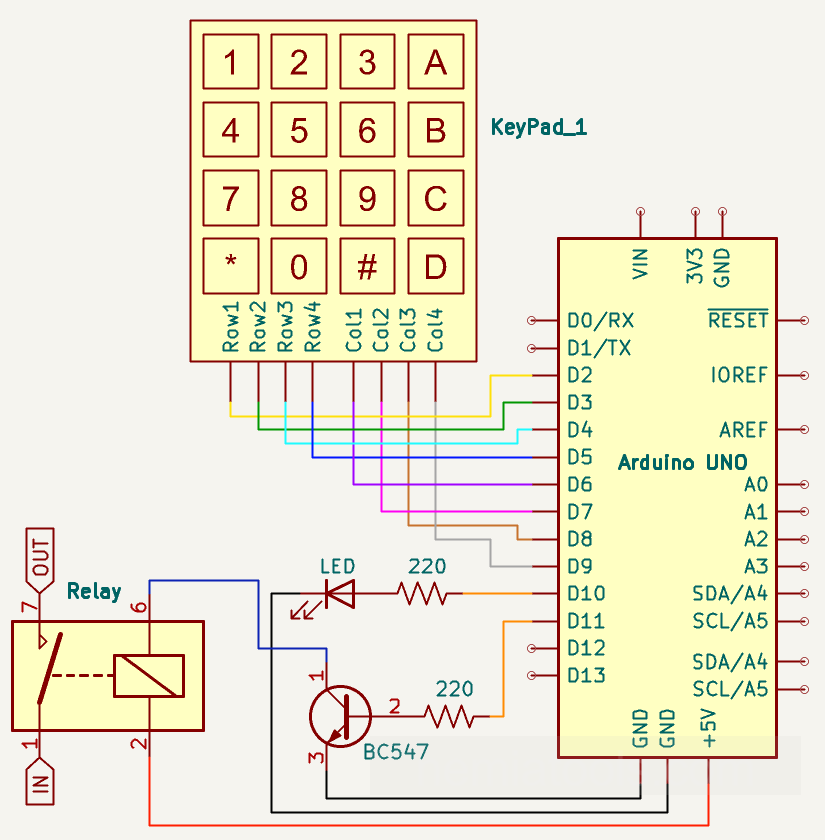
BASE CODE:
// https://nemiatools.com
#include <string.h> // String comparison support

const byte ROW_NUM = 4; // Number of keypad rows
const byte COLUMN_NUM = 4; // Number of keypad columns

char keys[ROW_NUM][COLUMN_NUM] = { // Key layout
  {'1', '2', '3', 'A'}, // First row
  {'4', '5', '6', 'B'}, // Second row
  {'7', '8', '9', 'C'}, // Third row
  {'*', '0', '#', 'D'}  // Fourth row
};

byte pin_rows[ROW_NUM] = {9, 8, 7, 6}; // Keypad row pins
byte pin_cols[COLUMN_NUM] = {5, 4, 3, 2}; // Keypad column pins

const byte relaySignalPin = 10; // SRD-05VDC-SL-C relay module signal pin
const String correctPassword = "1234"; // Correct password
String inputPassword = ""; // Entered password
bool relayActive = false; // Relay state
bool clearNext = false; // Clear after submit

void setRelay(bool active) { // Control active-LOW relay module
  relayActive = active; // Save relay state
  digitalWrite(relaySignalPin, active ? LOW : HIGH); // LOW activates the relay module
}

void setup() {
  pinMode(relaySignalPin, OUTPUT); // Set relay signal as output
  setRelay(false); // Keep relay off at startup

  for (byte i = 0; i < ROW_NUM; i++) { // Set rows
    pinMode(pin_rows[i], INPUT_PULLUP); // Pull-up rows
  }

  for (byte i = 0; i < COLUMN_NUM; i++) { // Set columns
    pinMode(pin_cols[i], OUTPUT); // Output columns
    digitalWrite(pin_cols[i], HIGH); // Columns inactive
  }
}

char getKey() { // Read keypad manually
  for (byte col = 0; col < COLUMN_NUM; col++) { // Scan columns
    for (byte i = 0; i < COLUMN_NUM; i++) { // Reset columns
      digitalWrite(pin_cols[i], HIGH); // Column inactive
    }

    digitalWrite(pin_cols[col], LOW); // Activate current column

    for (byte row = 0; row < ROW_NUM; row++) { // Scan rows
      if (digitalRead(pin_rows[row]) == LOW) { // Key pressed
        return keys[row][col]; // Return pressed key
      }
    }
  }

  return 0; // No key pressed
}

void loop() {
  if (clearNext) { // Reset requested
    inputPassword = ""; // Clear password
    clearNext = false; // Reset flag
  }

  char key = getKey(); // Read key

  if (!key) { // No key pressed
    return; // Exit immediately
  }

  delay(150); // Simple debounce delay

  if (key == '*') { // Clear input
    inputPassword = ""; // Clear password
  }
  else if (key == '#') { // Confirm input
    if (inputPassword == correctPassword) { // Check password
      setRelay(!relayActive); // Toggle relay state
    }
    clearNext = true; // Clear input after confirmation
  }
  else if (key >= '0' && key <= '9') { // Accept only digits
    inputPassword += key; // Add digit to password
  }

  while (getKey() != 0) { // Wait for key release
    delay(10); // Small pause
  }
}
CODE WITH Keypad.h:
// https://nemiatools.com
#include <Keypad.h> // Include Keypad library

const byte ROW_NUM = 4; // Number of keypad rows
const byte COLUMN_NUM = 4; // Number of keypad columns

char keys[ROW_NUM][COLUMN_NUM] = { // Key layout
  {'1', '2', '3', 'A'}, // First row
  {'4', '5', '6', 'B'}, // Second row
  {'7', '8', '9', 'C'}, // Third row
  {'*', '0', '#', 'D'}  // Fourth row
};

byte pin_rows[ROW_NUM] = {9, 8, 7, 6}; // Keypad row pins
byte pin_cols[COLUMN_NUM] = {5, 4, 3, 2}; // Keypad column pins

const byte relaySignalPin = 10; // SRD-05VDC-SL-C relay module signal pin
const String correctPassword = "1234"; // Correct password
String inputPassword = ""; // Entered password
bool relayActive = false; // Relay state
bool clearNext = false; // Clear after submit

Keypad keypad = Keypad(makeKeymap(keys), pin_rows, pin_cols, ROW_NUM, COLUMN_NUM); // Create keypad object

void setRelay(bool active) { // Control active-LOW relay module
  relayActive = active; // Save relay state
  digitalWrite(relaySignalPin, active ? LOW : HIGH); // LOW activates the relay module
}

void setup() {
  pinMode(relaySignalPin, OUTPUT); // Set relay signal as output
  setRelay(false); // Keep relay off at startup
}

void loop() {
  if (clearNext) { // Reset requested
    inputPassword = ""; // Clear password
    clearNext = false; // Reset flag
  }

  char key = keypad.getKey(); // Read keypad key

  if (!key) { // No key pressed
    return; // Exit immediately
  }

  if (key == '*') { // Clear input
    inputPassword = ""; // Clear password
  }
  else if (key == '#') { // Confirm input
    if (inputPassword == correctPassword) { // Check password
      setRelay(!relayActive); // Toggle relay state
    }
    clearNext = true; // Clear input after confirmation
  }
  else if (key >= '0' && key <= '9') { // Accept only digits
    inputPassword += key; // Add digit to password
  }
}
How it works:
This project uses an Arduino, a 4x4 matrix keypad, and an SRD-05VDC-SL-C 5V relay module to create a password-controlled door lock system. The keypad is used to enter the code, while the relay module acts as the electrical switch for the lock or external load.
The keypad is a matrix made of 4 rows and 4 columns. When a key is pressed, it connects one row to one column. This is why the Arduino can read 16 keys using only 8 pins instead of one pin for each key.
The arrays pin_rows and pin_cols define how the keypad is connected to Arduino pins 2 to 9. The array keys tells the program which character belongs to each row and column position.
The line const byte relaySignalPin = 10; defines the Arduino pin connected to the signal input of the relay module. This relay module is active LOW, so the relay turns on when the signal pin is LOW and turns off when the signal pin is HIGH.
This active-LOW behavior is very important. In the function setRelay(bool active), the line digitalWrite(relaySignalPin, active ? LOW : HIGH); writes LOW when the relay must be active and HIGH when it must be inactive.
At startup, setRelay(false); keeps the relay module off. This is safer because the door lock or connected load does not turn on automatically when the Arduino powers up.
The variable correctPassword stores the valid password, while inputPassword stores the digits entered by the user. The variable relayActive remembers whether the relay is currently active or inactive.
In the manual version of the code, the keypad is scanned by the function getKey(). Arduino keeps all columns HIGH, then sets one column at a time to LOW and checks the row inputs. Since the rows use INPUT_PULLUP, a pressed key is detected as LOW.
When a row reads LOW during the scan, the code knows that the pressed key is at the intersection between the active column and that row. The function then returns the correct character from the keys array.
In the main loop, the star key '*' clears the entered password, numeric keys are added to inputPassword, and the hash key '#' confirms the input.
When '#' is pressed, the condition if (inputPassword == correctPassword) checks whether the entered password is correct. If it is correct, setRelay(!relayActive); toggles the relay state: if it was off, it turns on; if it was on, it turns off.
The line while (getKey() != 0) in the manual version waits until the key is released. This prevents a single long press from being read many times.
The second version uses the Keypad.h library. The line Keypad keypad = Keypad(makeKeymap(keys), pin_rows, pin_cols, ROW_NUM, COLUMN_NUM); creates the keypad object and lets the library handle the scanning internally.
With the library version, the code can simply use char key = keypad.getKey(); to read the pressed key. This makes the program shorter and easier to modify, while keeping the same password and relay logic.
The relay module has logic pins for VCC, GND, and IN, plus screw terminals for the switched circuit. The Arduino controls only the IN pin; the actual lock or load should be connected to the relay module terminals according to whether the project needs a normally open or normally closed contact.
Overall, the system reads the keypad, builds the password digit by digit, checks the code when the user presses '#', and changes the state of the active-LOW relay module when the password is correct.
Make sure the relay module input is really active LOW. If a different module uses active-HIGH logic, the line inside setRelay() must be inverted. Also keep the Arduino ground connected to the relay module ground, and respect the voltage and current limits of the relay contacts.