How to Build the Dino Game with Arduino and an LCD
Description
This project is a small Arduino LCD dinosaur game inspired by the classic running dinosaur game. It uses an Arduino board, a 16x2 I2C LCD display, and a push button. The dinosaur stays on the left side of the screen, while a cactus moves from right to left. When the button is pressed, the dinosaur jumps to avoid the cactus. If the cactus reaches the same position as the dinosaur, the game ends and a “GAME OVER” screen is displayed. This project is useful for learning LCD custom characters, I2C display control, button input, simple game logic, collision detection, timing with millis(), and basic animation on an Arduino display.
Required components:
- 1x Arduino UNO
- 1x LCD display with integrated I2C module
- 1x Normally open (NO) push button
- 1x 10kΩ Resistor
- Jumper Cables (and optional breadboard)
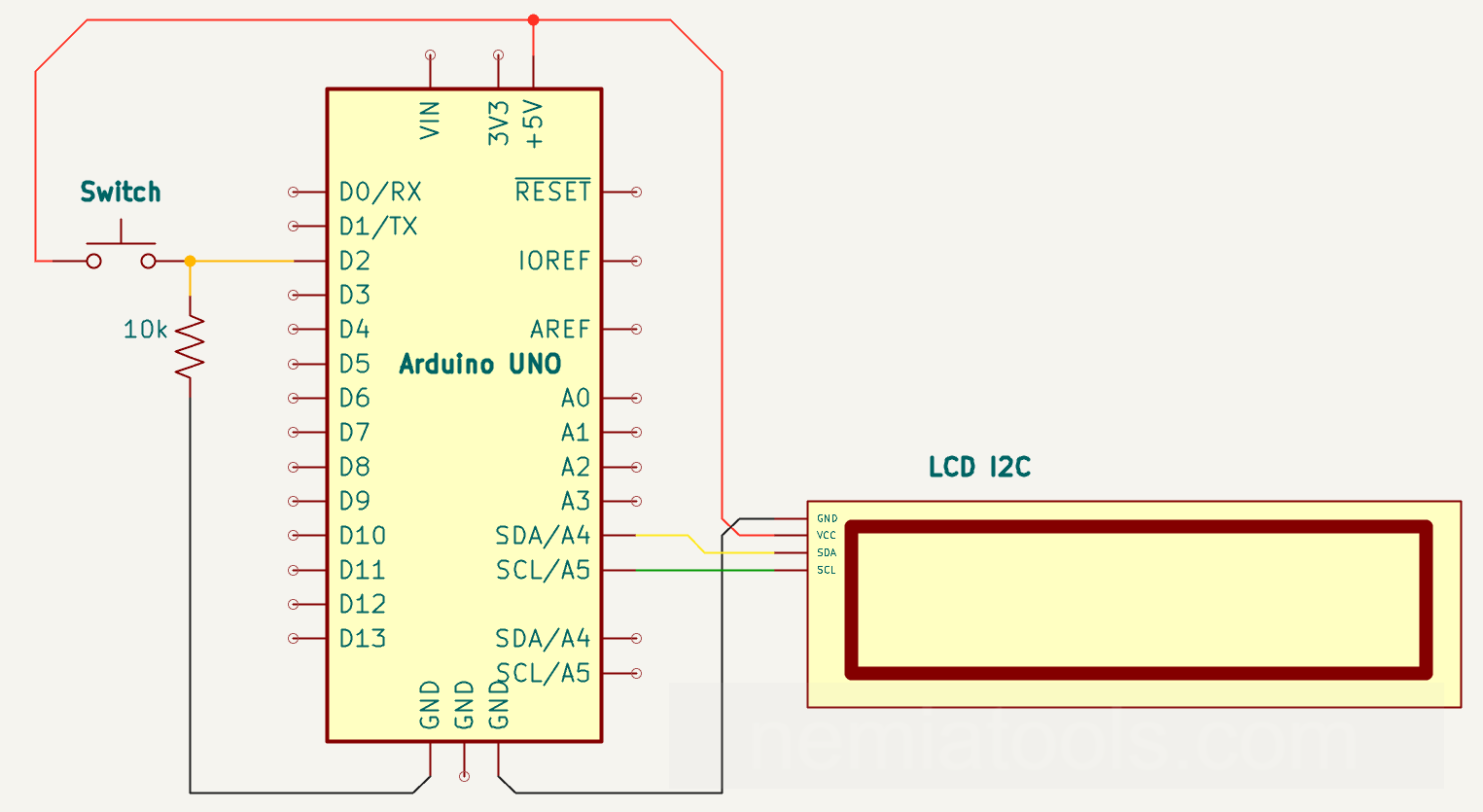
Schematic:
CODE:
// https://nemiatools.com
#include <Wire.h> // Include I2C communication library
#include <LiquidCrystal_I2C.h> // Include LCD I2C library

#define buttonPin 2 // Define button input pin
LiquidCrystal_I2C lcd(0x27, 16, 2); // Create LCD display object

byte dino1[8] = { // Define first dinosaur sprite
  B00111,
  B00101,
  B00111,
  B00100,
  B01111,
  B11100,
  B11100,
  B00100
};

byte dino2[8] = { // Define second dinosaur sprite
  B00111,
  B00101,
  B00111,
  B00100,
  B01111,
  B11100,
  B11100,
  B10000
};

byte cactus[8] = { // Define cactus custom sprite
  B00100,
  B00100,
  B10100,
  B10101,
  B11111,
  B00100,
  B00100,
  B01110
};

//dino coordinates
const int dinoX = 4; // Set dinosaur horizontal position
int dinoY = 1; // Set dinosaur vertical position

//cactus coordinates
int cactusX = 15; // Set cactus horizontal position
const int cactusY = 1; // Set cactus vertical position
//millis for jump
unsigned long lastJump = 0; // Store last jump time
unsigned long jumpDuration= 600; // Set jump duration time

//millis for game time
unsigned long startGame = 0; // Store game start time
unsigned long gameTime = 0; // Store elapsed game time
int timeX; // Store timer cursor position

//button states
bool buttonState; // Store current button state
bool oldButtonState = false; // Store previous button state


void setup() {
  pinMode(buttonPin, INPUT); // Configure button as input
  lcd.init();          // Initialize the LCD display
  lcd.backlight();     // Turn LCD backlight on

  // Save custom characters memory
  lcd.createChar(0, dino1); // Save first dinosaur sprite
  lcd.createChar(1, dino2); // Save second dinosaur sprite
  lcd.createChar(2, cactus); // Save cactus custom sprite

  //Initial menu
  lcd.setCursor(0, 0); // Set cursor first line
  lcd.print("DINO GAME"); // Print game title text
  lcd.setCursor(0, 1); // Set cursor second line
  lcd.print("by NEMIAtools"); // Print author name text
  while (true){ // Wait until button press
    if(digitalRead(buttonPin)) break; // Exit when button pressed
  }
  while(digitalRead(buttonPin)){ // Wait until button released
  }
}

void game(){ // Run main game function
  startGame = millis(); // Save current start time
  lastJump = millis() - jumpDuration; // Reset jump timing state
  oldButtonState = false; // Reset previous button state
  dinoY = 1; // Place dinosaur on ground
  bool dinoState = true; // Set dinosaur animation state

  while(true){ // Repeat game loop forever
    gameTime = (millis() - startGame) / 10; // Calculate elapsed centiseconds
    lcd.clear(); // Clear LCD display content

    buttonState = digitalRead(buttonPin); // Read current button state
    if(buttonState && !oldButtonState && millis() - lastJump >= jumpDuration){ // Check valid jump request
      lastJump = millis(); // Save new jump time
    }
    oldButtonState = buttonState; // Update previous button state

    if(millis() - lastJump < jumpDuration) dinoY = 0; // Move dinosaur upward while jumping
    else dinoY = 1; // Move dinosaur back down

    if(gameTime > 99999) gameTime = 99999; // Limit maximum displayed time
    timeX = String(gameTime).length(); // Count timer digit length
    lcd.setCursor(16 - timeX, 0); // Align timer right side
    lcd.print(gameTime); // Print current game time

    lcd.setCursor(cactusX, cactusY); // Set cursor at cactus
    lcd.write(byte(2)); // Draw cactus custom character
    lcd.setCursor(dinoX, dinoY); // Set cursor at dinosaur
    if(dinoState) lcd.write(byte(0)); // Draw first dinosaur frame
    else lcd.write(byte(1)); // Draw second dinosaur frame

    if((cactusX == dinoX) && (cactusY == dinoY)){ // Check collision with cactus
      lcd.setCursor((dinoX + 1), cactusY); // Set cursor beside dinosaur
      lcd.write(byte(2)); // Draw cactus after collision
      break; // Exit game loop immediately
    }

    cactusX--; // Move cactus leftward once
    if(cactusX < 0) cactusX = 15; // Reset cactus at right
    dinoState = !dinoState; // Switch dinosaur animation frame

    delay(100); // Wait before next frame
  }
  return; // Return from game function
}

void gameover(){ // Run game over screen
  lcd.setCursor(0, 0); // Set cursor first line
  lcd.print("GAME OVER"); // Print game over text
  lcd.setCursor(1, 1); // Set cursor second line

  while(digitalRead(buttonPin)){ // Wait for button release
  }
  while(!digitalRead(buttonPin)){ // Wait for button press
  }
  while(digitalRead(buttonPin)){ // Wait for button release
  }
  return; // Return from gameover function
}

void loop() {
  cactusX = 15; // Reset cactus start position
  lcd.clear(); // Clear LCD before game
  game(); // Start main game function
  gameover(); // Show game over screen
}
How it works:
This project works as a simple dinosaur runner game on a 16x2 I2C LCD display. The player presses a button to make the dinosaur jump over a cactus that moves from right to left.
The line #include <Wire.h> enables I2C communication, while #include <LiquidCrystal_I2C.h> allows the Arduino to control the LCD through the I2C adapter. Thanks to I2C, the display needs only SDA and SCL communication lines instead of many parallel LCD pins.
The line LiquidCrystal_I2C lcd(0x27, 16, 2); creates the LCD object. The value 0x27 is the I2C address of the display, while 16, 2 means that the LCD has 16 columns and 2 rows.
The arrays byte dino1[8], byte dino2[8], and byte cactus[8] define custom LCD characters. Each one is made of 8 rows of pixels. The two dinosaur sprites are used to create a running animation, while the cactus sprite is the obstacle.
The line const int dinoX = 4; fixes the dinosaur horizontal position. The variable int dinoY = 1; controls the vertical position: when it is 1, the dinosaur is on the ground; when it is 0, the dinosaur is jumping.
The variable int cactusX = 15; starts the cactus from the right side of the display. At every game frame, the line cactusX--; moves it one position to the left. When it goes out of the screen, if(cactusX < 0) cactusX = 15; places it again on the right side.
The most important timing part of this project uses millis(). In Arduino, millis() returns the number of milliseconds passed since the board was powered on or reset. It is useful because it allows the code to measure elapsed time without depending only on fixed delays.
At the beginning of the game, the line startGame = millis(); saves the exact moment when the game starts. Later, the line gameTime = (millis() - startGame) / 10; calculates how much time has passed since the start of the game. The division by 10 converts milliseconds into centiseconds, so the displayed value increases like a fast game score.
The variable lastJump stores the moment when the last jump started. The line lastJump = millis() - jumpDuration; is used at the start of the game to make the dinosaur immediately ready to jump. Since jumpDuration is already subtracted, the condition for allowing a new jump is already true.
The line unsigned long jumpDuration = 600; sets the jump duration to 600 milliseconds. This means that, after a valid button press, the dinosaur stays on the upper row for about 0.6 seconds before returning to the ground.
The line buttonState = digitalRead(buttonPin); reads the button. The condition if(buttonState && !oldButtonState && millis() - lastJump >= jumpDuration) checks three things: the button is currently pressed, it was not pressed in the previous frame, and the previous jump has already finished.
This condition is important because it detects only a new button press, not a button that is being held down. The part !oldButtonState prevents continuous jumping while the player keeps the button pressed.
When the jump is valid, the line lastJump = millis(); saves the current time as the start of the new jump. From that moment, the code compares the current millis() value with lastJump to know if the dinosaur should still be in the air.
The condition if(millis() - lastJump < jumpDuration) checks if less than 600 milliseconds have passed since the jump started. If this is true, dinoY = 0; moves the dinosaur to the upper row. Otherwise, dinoY = 1; brings it back to the ground.
The timer shown on the display is aligned to the right using timeX = String(gameTime).length(); and lcd.setCursor(16 - timeX, 0);. This keeps the score positioned correctly even when the number of digits increases.
The cactus is drawn using lcd.setCursor(cactusX, cactusY); and lcd.write(byte(2));. The dinosaur is drawn using lcd.setCursor(dinoX, dinoY);. The variable dinoState switches between dino1 and dino2 to create a simple running animation.
The collision is checked with if((cactusX == dinoX) && (cactusY == dinoY)). If the cactus and the dinosaur are in the same LCD position, the game stops and the player loses.
The line delay(100); controls the speed of the game frames. Even if the jump timing is calculated with millis(), this delay still affects how often the screen is refreshed and how fast the cactus moves.
When a collision happens, the function gameover() displays GAME OVER and waits for the player to press the button again before restarting the game.
Overall, millis() is used in two main ways: to calculate the game score from the start time, and to control the jump duration precisely. This makes the jump depend on elapsed time instead of only on the number of loop cycles.
For this unchanged sketch, use the 10 kΩ pull-down resistor between pin 2 and GND, and the normally open button between pin 2 and 5 V. Using INPUT_PULLUP instead also requires reversing the button logic in the sketch.
Future development:
This project could be improved by adding a buzzer to create simple sound effects. For example, the buzzer could play a short tone when the dinosaur jumps and a different sound when the player hits the cactus. This would make the game more interactive and closer to a real arcade-style mini game.