How to Build an Arduino NTC Thermistor Thermometer with LCD
Description
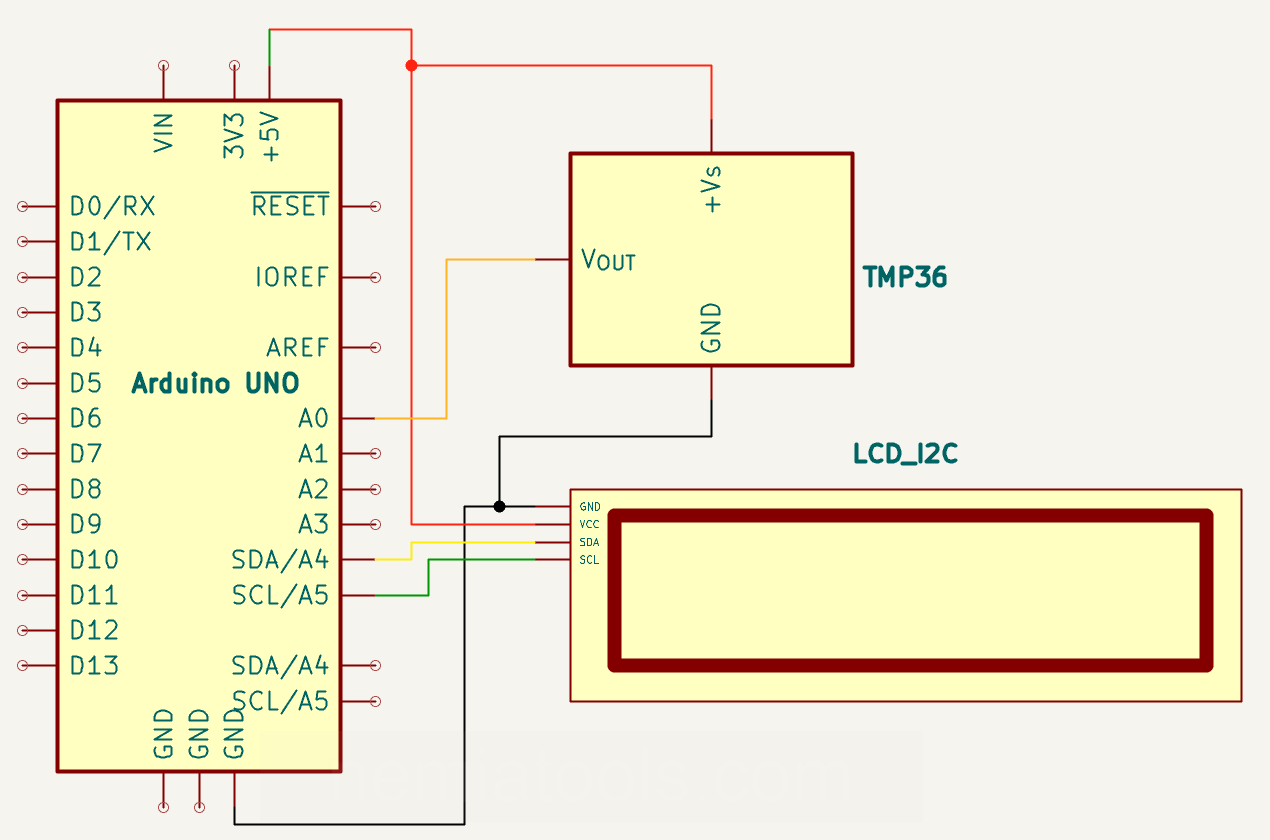
This project is a digital thermometer built around an Arduino board, a 16x2 I2C LCD display, and an NTC 3950 10k thermistor connected to analog pin A0 through a 10k pull-up resistor. The Arduino reads the voltage divider created by the pull-up resistor and the thermistor, calculates the thermistor resistance, converts it into a Celsius temperature using the Beta equation, and displays the result on the LCD with a custom degree symbol. Thanks to the I2C interface, the LCD needs only two communication lines, keeping the wiring simple and leaving more Arduino pins available. This project is useful for learning thermistors, analog voltage dividers, I2C LCD displays, custom characters, and Arduino temperature measurement.
Required components:
- 1x Arduino UNO
- 1x 16x2 LCD display with integrated I2C module
- 1x NTC 3950 10k thermistor
- 1x 10k pull-up resistor
- Jumper cables (and optional breadboard)
Schematic:
CODE:
// https://nemiatools.com
#include <Wire.h> // Include I2C communication library
#include <LiquidCrystal_I2C.h> // Include LCD I2C library
#include <math.h> // Include logarithm function

LiquidCrystal_I2C lcd_1(0x27, 16, 2); // LCD object

#define THERMISTOR_PIN A0 // Thermistor signal pin
const float PULLUP_RESISTOR = 10000.0; // 10k pull-up resistor
const float NOMINAL_RESISTANCE = 10000.0; // NTC resistance at 25°C
const float NOMINAL_TEMPERATURE_K = 25.0 + 273.15; // 25°C in Kelvin
const float BETA_COEFFICIENT = 3950.0; // NTC 3950 beta value

byte degree_symbol[8] = { // Degree symbol
  B00110, // Row 1
  B01001, // Row 2
  B01001, // Row 3
  B00110, // Row 4
  B00000, // Row 5
  B00000, // Row 6
  B00000, // Row 7
  B00000  // Row 8
};

float readTemperatureC() { // Read thermistor temperature
  float adcValue = analogRead(THERMISTOR_PIN); // Read analog divider value

  if (adcValue <= 0) adcValue = 1; // Avoid division by zero
  if (adcValue >= 1023) adcValue = 1022; // Avoid division by zero

  float thermistorResistance = PULLUP_RESISTOR * adcValue / (1023.0 - adcValue); // Calculate NTC resistance

  float temperatureK = 1.0 / ( // Convert resistance to Kelvin
    (1.0 / NOMINAL_TEMPERATURE_K) +
    (1.0 / BETA_COEFFICIENT) * log(thermistorResistance / NOMINAL_RESISTANCE)
  );

  return temperatureK - 273.15; // Return Celsius temperature
}

void setup()
{
  lcd_1.init(); // Initialize LCD
  pinMode(THERMISTOR_PIN, INPUT); // Thermistor divider input

  lcd_1.backlight(); // Enable backlight
  lcd_1.createChar(0, degree_symbol); // Create degree symbol
  lcd_1.setCursor(3, 0); // First line
  lcd_1.print("TERMOMETER"); // Show title
  lcd_1.setCursor(2, 1); // Second line
  lcd_1.print("by Nemiatools"); // Show author
  delay(3000); // 3 seconds for the home screen
  lcd_1.clear(); // Clear display
  lcd_1.setCursor(0, 0); // First line
  lcd_1.print("Temperature:"); // Static text
  lcd_1.setCursor(10, 1); // Degree symbol position
  lcd_1.write(byte(0)); // Print degree symbol
  lcd_1.setCursor(11, 1); // Unit position
  lcd_1.print("C"); // Celsius unit
}

void loop()
{
  lcd_1.setCursor(3, 1); // Temperature value position
  lcd_1.print("      "); // Clear old value
  lcd_1.setCursor(3, 1); // Return to value position
  lcd_1.print(readTemperatureC(), 1); // Print temperature with one decimal
  delay(500); // Update twice per second
}
How it works:
This project uses an Arduino to build a thermometer with an NTC 3950 10k thermistor and a 16x2 I2C LCD display. The thermistor does not send a temperature value directly; instead, its resistance changes with temperature, and the Arduino converts that electrical change into degrees Celsius.
The lines #include <Wire.h> and #include <LiquidCrystal_I2C.h> add the libraries needed for the LCD. Wire.h enables I2C communication, while LiquidCrystal_I2C.h provides the functions used to initialize the LCD, move the cursor, print text, turn on the backlight, and create custom characters.
The I2C interface is useful because a normal 16x2 LCD without the adapter needs several Arduino pins, while the I2C version uses only SDA and SCL for communication. This keeps the wiring cleaner and leaves more pins available for sensors or other modules.
The line LiquidCrystal_I2C lcd_1(0x27, 16, 2); creates the LCD object. The value 0x27 is the display I2C address, while 16 and 2 tell the library that the display has 16 columns and 2 rows.
The line #include <math.h> is added because the thermistor conversion uses the logarithm function log(). This is needed by the Beta equation used to convert thermistor resistance into temperature.
The line #define THERMISTOR_PIN A0 defines the analog pin used to read the thermistor circuit. In this project, the signal pin is connected to a voltage divider made with a 10k pull-up resistor and the NTC 3950 10k thermistor.
The pull-up resistor is connected from the signal point to VCC, while the thermistor is connected from the signal point to ground. This means the Arduino reads the voltage between the resistor and the thermistor. When the temperature increases, the NTC resistance decreases, so the voltage on A0 also decreases.
The constants PULLUP_RESISTOR, NOMINAL_RESISTANCE, NOMINAL_TEMPERATURE_K, and BETA_COEFFICIENT describe the sensor circuit. For this NTC, the nominal resistance is 10k at 25°C, and the Beta value is 3950.
The array byte degree_symbol[8] creates a custom degree symbol for the LCD. A 16x2 character LCD can store small custom characters made of 8 rows of pixels, and this one is later printed before the letter C.
Inside setup(), the display is initialized with lcd_1.init();, the backlight is enabled with lcd_1.backlight();, and the custom symbol is stored with lcd_1.createChar(0, degree_symbol);. The first screen shows the project title for three seconds, then the LCD is cleared and prepared for the temperature reading.
The most important part of the code is the function readTemperatureC(). It starts with analogRead(THERMISTOR_PIN), which reads the voltage on A0 and converts it into a number from 0 to 1023.
The lines if (adcValue <= 0) adcValue = 1; and if (adcValue >= 1023) adcValue = 1022; protect the calculation from impossible division values. This is useful because the resistance formula contains 1023.0 - adcValue in the denominator.
The line float thermistorResistance = PULLUP_RESISTOR * adcValue / (1023.0 - adcValue); calculates the resistance of the thermistor. This formula comes directly from the voltage divider: because the thermistor is connected to ground and the 10k resistor is the pull-up, the analog reading is proportional to Rntc / (Rpullup + Rntc).
After the resistance is known, the code uses the Beta equation in the line float temperatureK = 1.0 / ((1.0 / NOMINAL_TEMPERATURE_K) + (1.0 / BETA_COEFFICIENT) * log(thermistorResistance / NOMINAL_RESISTANCE));. This converts the resistance ratio into an absolute temperature in Kelvin.
The line return temperatureK - 273.15; converts Kelvin into Celsius. This final value is the temperature printed on the LCD.
Inside loop(), the code clears only the numeric area of the second row, returns the cursor to the temperature position, and prints readTemperatureC() with one decimal digit. The fixed degree symbol and the letter C remain in place.
Overall, the project works by reading a voltage divider, calculating the thermistor resistance, converting that resistance into temperature, and displaying the result on the I2C LCD screen.
For correct readings, the formula assumes that the circuit uses a 10k pull-up resistor to VCC and the NTC thermistor to ground. If the resistor and thermistor are swapped, the resistance formula must be changed. The LCD address may also need to be changed from 0x27 to 0x3F on some modules.
Troubleshooting: incorrect temperature readings
If the LCD shows a temperature that is clearly incorrect even though the wiring is correct, one of the most likely causes is that the thermistor's nominal resistance is different from the value used in the code. This project is configured for a 10k NTC thermistor, so the code uses NOMINAL_RESISTANCE = 10000.0.
To check the thermistor, disconnect it from the circuit and measure its resistance with a multimeter at room temperature, ideally as close as possible to 25°C. The measured value does not have to be exactly equal to its nominal value because thermistors have tolerances and their resistance changes significantly with temperature. Use the reading to identify the nearest likely standard nominal value. For example, if you measure approximately 80 kΩ at room temperature, the thermistor is much more likely to be a 100k NTC than a 10k NTC.
In that case, change the thermistor nominal resistance in the code from 10000.0 to 100000.0: const float NOMINAL_RESISTANCE = 100000.0;. Do not change PULLUP_RESISTOR unless the fixed pull-up resistor physically used in the circuit also has a different value. After uploading the modified code, compare the displayed temperature with a known room-temperature reference.